Blog
How to Auto-Update Your iPhone Wallpaper Every Day with iOS Shortcuts
Set up My Life Dots to automatically update your iPhone lock screen wallpaper every midnight using iOS Shortcuts. 5-minute setup, hands-free forever. Works with iOS 26.
iOS will not let an app change your wallpaper. There is no API for it, no permission you can grant, and no setting hidden three levels deep that unlocks it. Every "auto-changing wallpaper" app on the App Store works around this the same way — by handing you a Shortcut and asking you to run it yourself.
So that is what this guide does, without the app in the middle. By the end your iPhone will fetch a fresh wallpaper every night and set it while you sleep, and you will never think about it again.
It takes about five minutes. There are two ways to do it: a prebuilt shortcut that takes six taps, and a manual version that needs no account at all. Both are below, along with the troubleshooting that actually matters — because roughly every problem with this setup comes down to one of four causes, and knowing which one saves a lot of guessing.
What you are building
Two separate pieces, and it is worth being clear that they are separate, because most people who get stuck have built one and not the other:
- A shortcut that fetches your current wallpaper image and sets it. This is the thing that does the work.
- An automation that runs that shortcut on a schedule. This is the thing that makes it happen without you.
A shortcut on its own is a button you still have to press. An automation without a shortcut has nothing to run. You need both, and the second one is the step people skip.
Path A — the prebuilt shortcut
This is the fast version. It needs an account, because the shortcut identifies you with a personal token so it knows which wallpaper design to fetch.
Step 1 — Copy your token
Sign in, open the Get iOS Shortcut dialog, and copy your token.
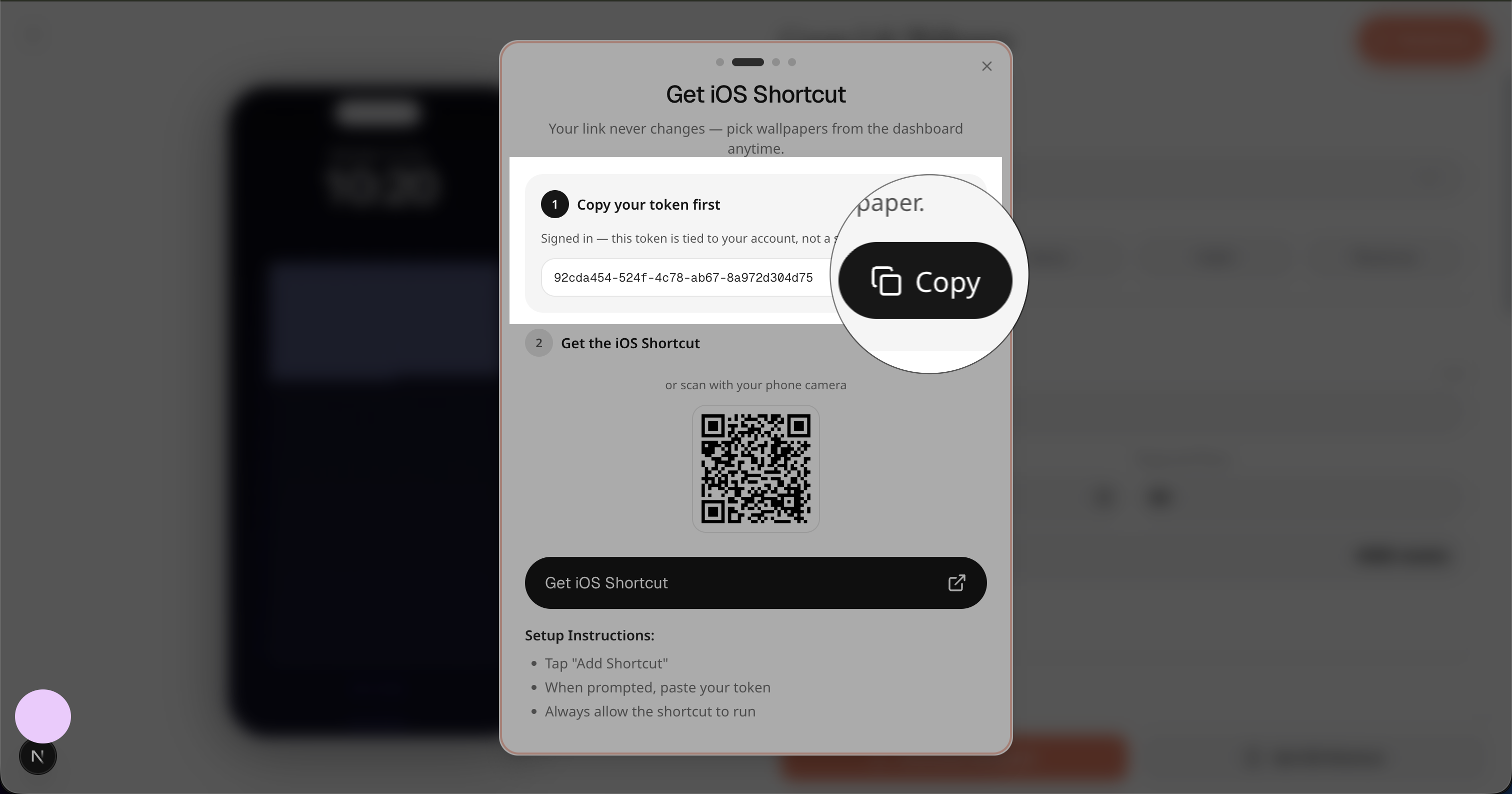
This token never changes. That matters more than it sounds: it means you can redesign your wallpaper, switch from a habit grid to a year progress grid, change themes — all from your dashboard, and the shortcut on your phone keeps working untouched. You set this up once, not once per design.
Treat it like a password. Anyone with the token can fetch your wallpaper image.
Step 2 — Add the shortcut
Open the shortcut link on your iPhone (not your Mac — it needs to land in the Shortcuts app on the device whose wallpaper you are setting), then tap the blue Add Shortcut button at the bottom.
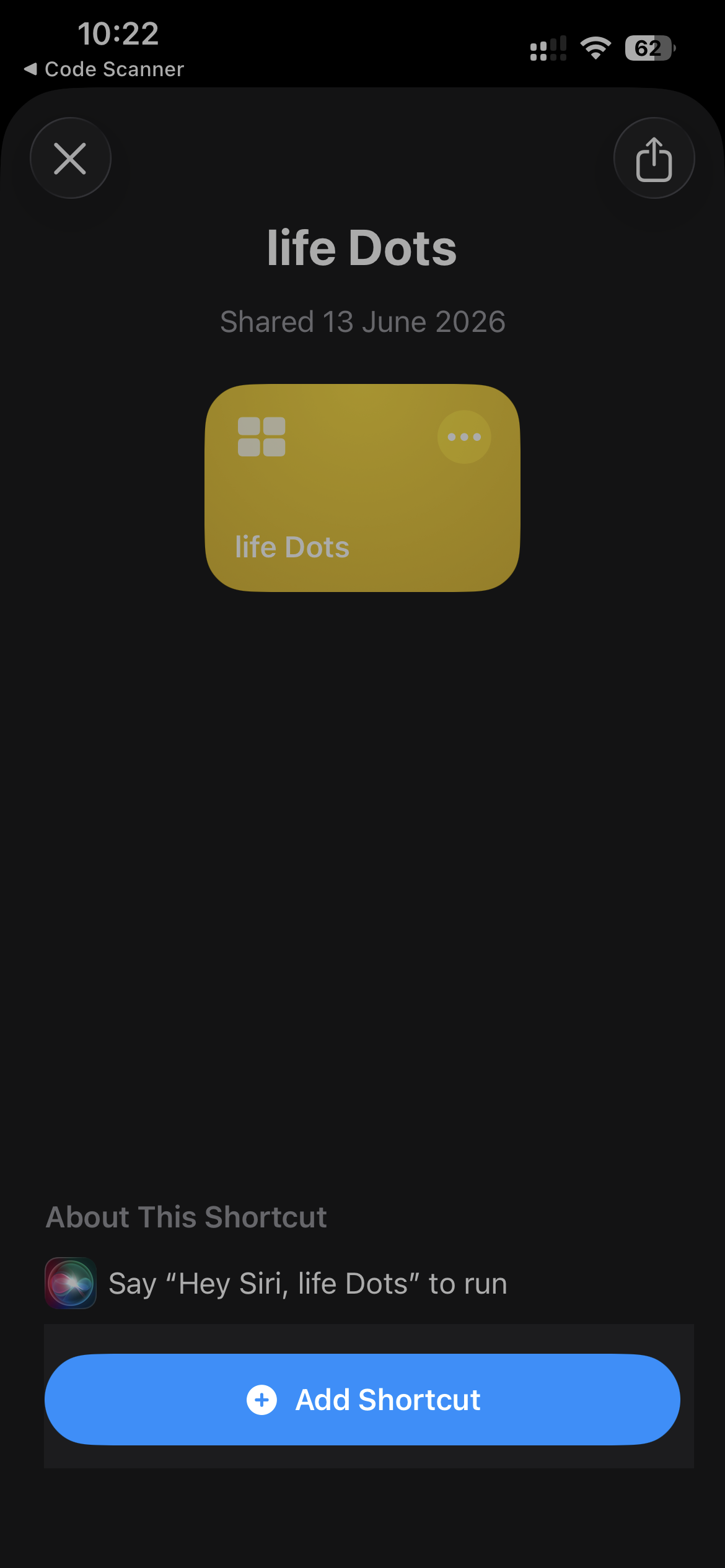
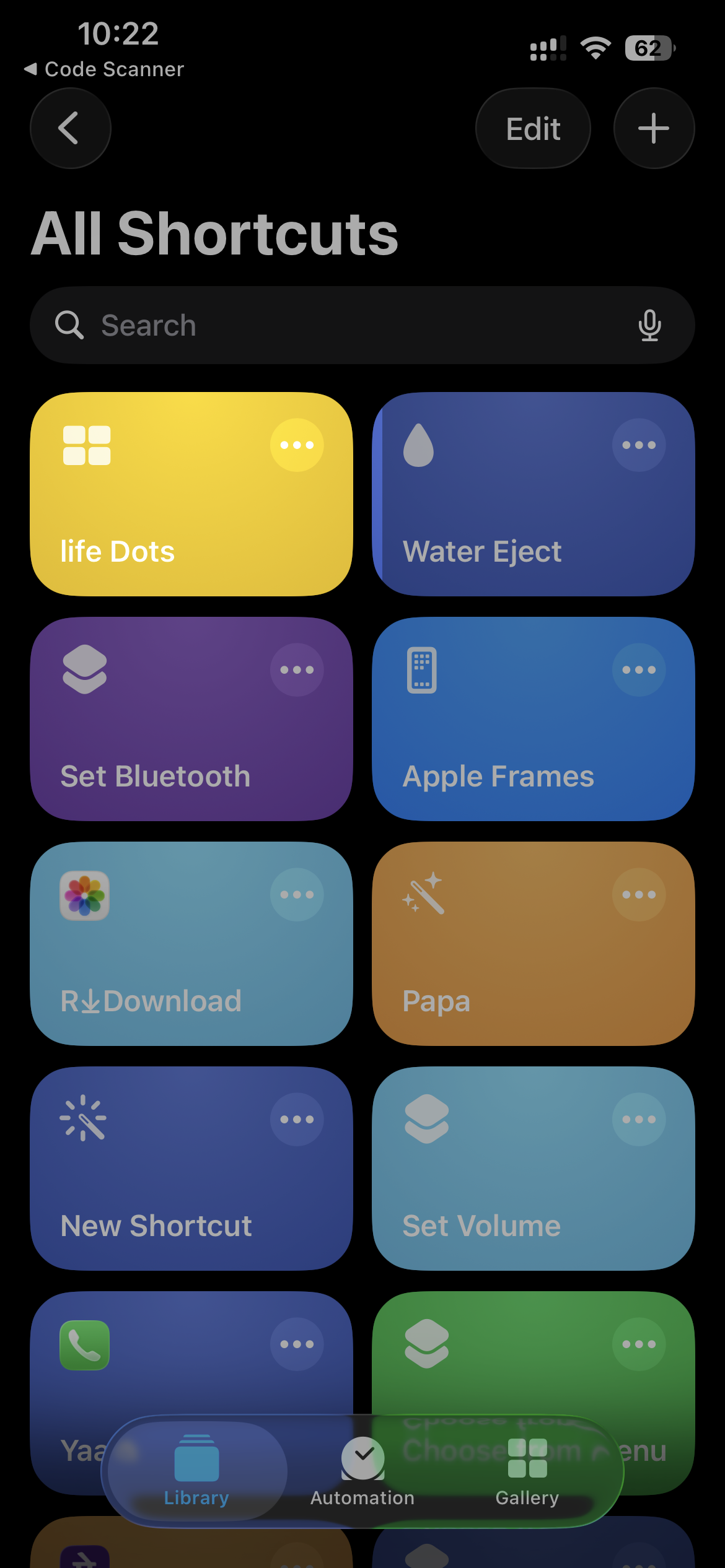
Step 3 — Open it in the Shortcuts app
Go to the Shortcuts app and tap the yellow life Dots tile in your library. That opens the editor.
Step 4 — Paste your token
The first action in the shortcut is a Text block holding placeholder text. Clear it completely and paste the token you copied in step 1.
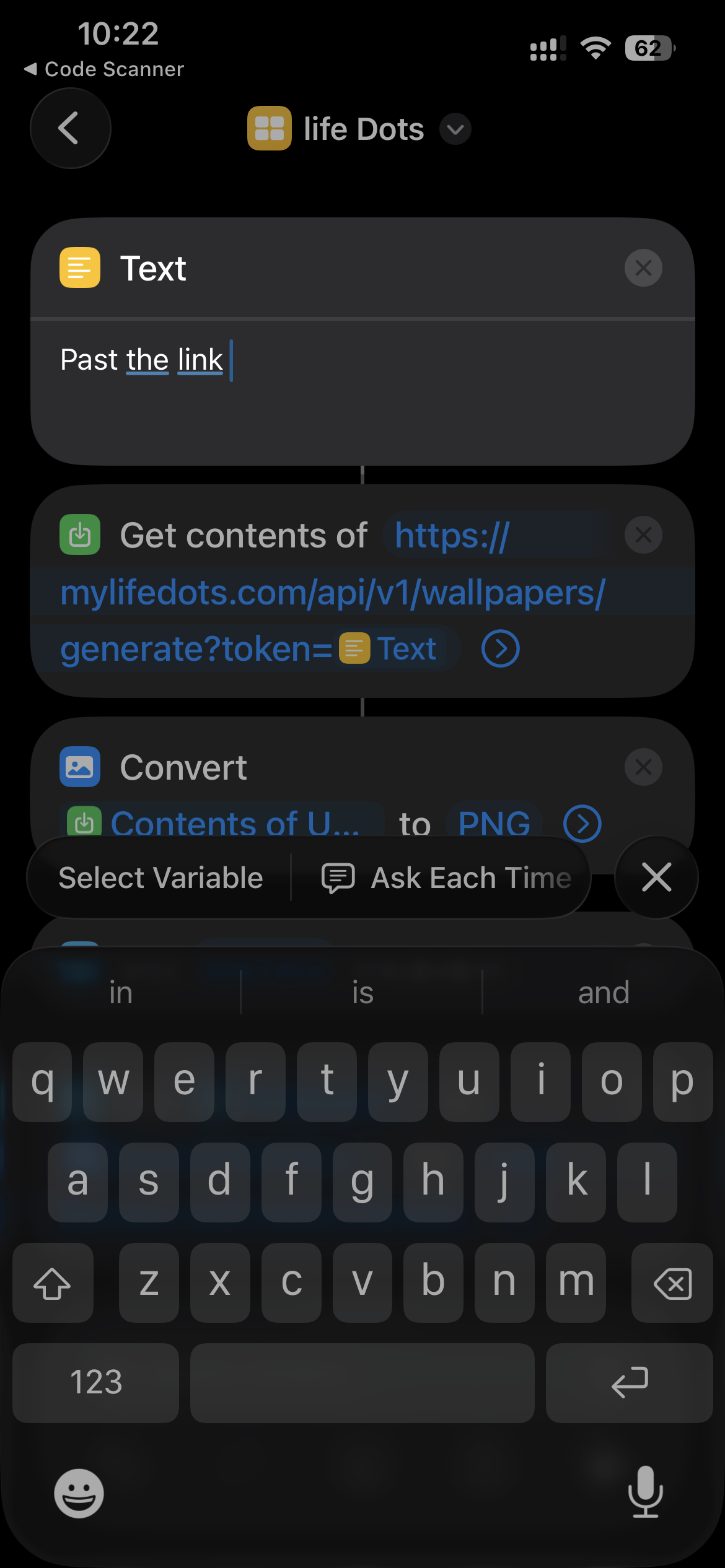
The most common mistake here is pasting next to the placeholder instead of replacing it. Select all of the existing text first — the field should contain your token and nothing else, with no leading space and no line break after it.
Step 5 — Run it once
Tap the ▶ play button in the bottom-right corner.
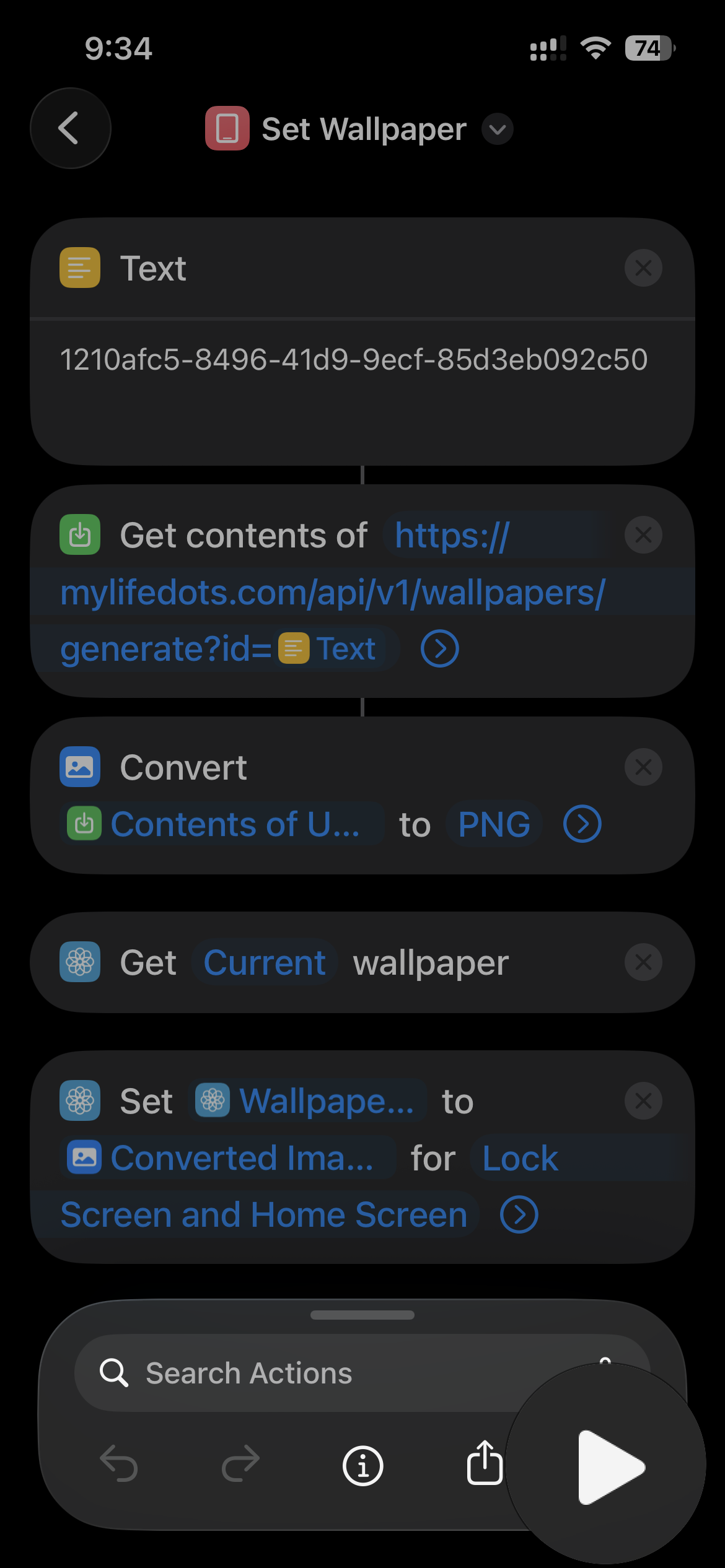
Step 6 — Allow the permission
iOS asks for permission the first time a shortcut sets your wallpaper. Tap Allow.
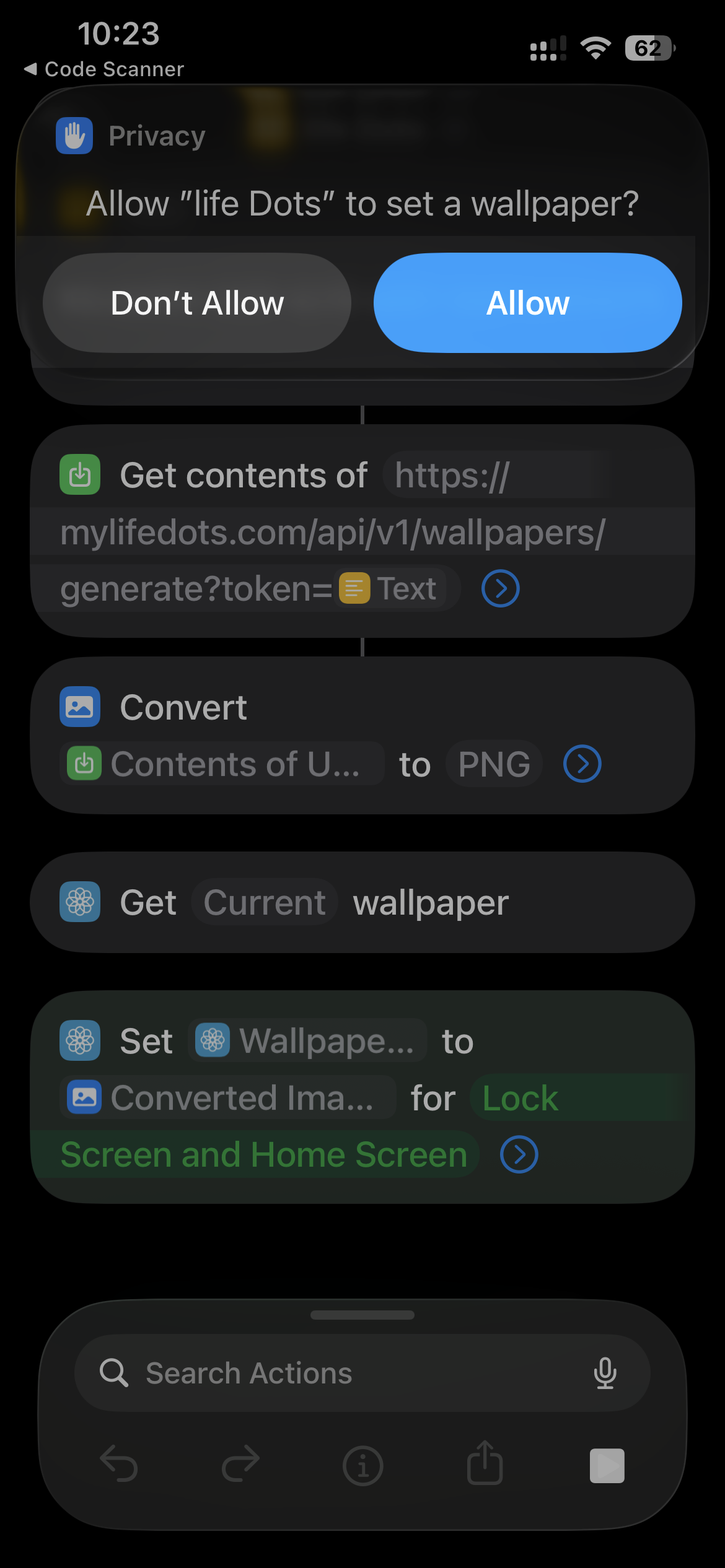
Your wallpaper is now set. But it will not update on its own yet — that is the next section, and it is the part that matters.
Making it run by itself
A shortcut you have to tap is barely better than editing the image by hand. The automation is what makes this worth doing.
- In the Shortcuts app, tap the Automation tab at the bottom.
- Tap +, then Time of Day.
- Set it to 12:00 AM, repeating Daily.
- For the action, choose Run Shortcut and select your life Dots shortcut.
- Turn off "Ask Before Running." Do not skip this. Do not assume it defaults to off.
- Tap Done.
That fifth step is, by a wide margin, the single most common reason this setup appears not to work. With "Ask Before Running" enabled, iOS waits at midnight for you to confirm — and at midnight you are asleep, so it silently does nothing. People then conclude the shortcut is broken when it is doing exactly what they configured it to do.
Path B — the manual version, no account
If you would rather not sign in, you can build the same thing yourself in about two minutes. This works with any image URL that returns a fresh image each time it is requested.
- Build a wallpaper in the wallpaper creator and copy its image URL.
- Open Shortcuts → Automation → + → Time of Day, set to 12:00 AM daily.
- Add the action Get Contents of URL and paste your image URL.
- Add the action Set Wallpaper Photo. For the image input, select the output of the previous step — Shortcuts usually fills this in as a "Contents of URL" variable automatically; if it does not, tap the field and pick it manually.
- Enable both Lock Screen and Home Screen, and turn off Show Preview. Preview requires a tap to confirm, which defeats an overnight automation for the same reason as "Ask Before Running."
- Turn off Ask Before Running. Save.
Two actions, one trigger. That is genuinely all an auto-updating wallpaper is.
Troubleshooting
Nearly every failure here is one of four things.
Nothing happens overnight, but tapping Run works. This is "Ask Before Running" being on, ninety percent of the time. Open the automation, tap the three-dot menu, and confirm it is off. If you are on Path B, also check that Show Preview is off inside the Set Wallpaper Photo action — it is a second, separate confirmation prompt that stops the same automation in the same way.
It worked for a week, then stopped. Usually Low Power Mode. iOS defers background automations when the battery is low, and if your phone regularly dips under 20% before midnight, the automation gets skipped on exactly those nights. Moving the trigger to a time when you are awake and charging — 6:00 AM works well — fixes it. The image is identical either way; the day rolls over at midnight regardless of when you fetch it.
A permission error on "Set Wallpaper Photo." Go to Settings → Shortcuts and confirm the app is allowed to modify your wallpaper. If you have never run the shortcut manually, run it once by hand first — the permission prompt only appears on a manual run, so an automation that has never been run manually can fail before it ever asks.
The image looks wrong — blurry, cropped, or the dots are cut off. Three separate causes, worth telling apart:
- Blurry usually means the image was resized. Download it manually and check it looks right before blaming the automation.
- Cropped is usually Perspective Zoom. iOS applies a parallax zoom to wallpapers by default, which crops the edges. Turn it off when setting the wallpaper manually, then re-run the shortcut.
- Dots hidden behind the clock is the Depth Effect, which lifts part of the image in front of the time. It looks great on photos and badly mangles a grid. Turn it off in the lock screen editor, or shift your grid lower in the wallpaper creator.
One more, less obvious: iOS supports multiple lock screens, and the shortcut sets the active one. If you switch lock screens via a Focus mode, you may be looking at a different wallpaper than the one being updated. Set the same image on each lock screen you actually use, or keep the dot grid on one.
Why midnight
Because the day is the unit. Habits, streaks and progress are all counted in whole days, so fetching at midnight means the image always represents a complete day — every morning, the number is right.
The exception is the Low Power Mode case above. If your automation keeps getting skipped, 6:00 AM is the better trade: slightly later, far more reliable, and identical content.
What this actually changes
A static wallpaper stops being visible within about a week. Your visual system is built to filter out things that do not change, and it is very good at its job — which is why the motivational wallpaper you set in January was furniture by February.
An image that is subtly different every day does not disappear the same way. Not because a dot grid is fascinating, but because the small daily delta is enough to keep it from being fully filtered out. You keep noticing it, and noticing it is the entire mechanism.
That is the honest case for automating this rather than setting one nice image and leaving it. Not that the automation is impressive, but that a wallpaper which never changes eventually stops existing.
Five minutes of setup, then nothing, forever.
Create your wallpaper — free, no account needed to try it. If you are still deciding what to track, start with countdown or streak.